Subscribe to Our Events Calendar
Please note: Calendar updates may not appear instantly. Google Calendar, Outlook, and Apple Calendar control how often they refresh subscribed calendars.
Select event type(s)
Google Calendar
Subscribe using Google Calendar
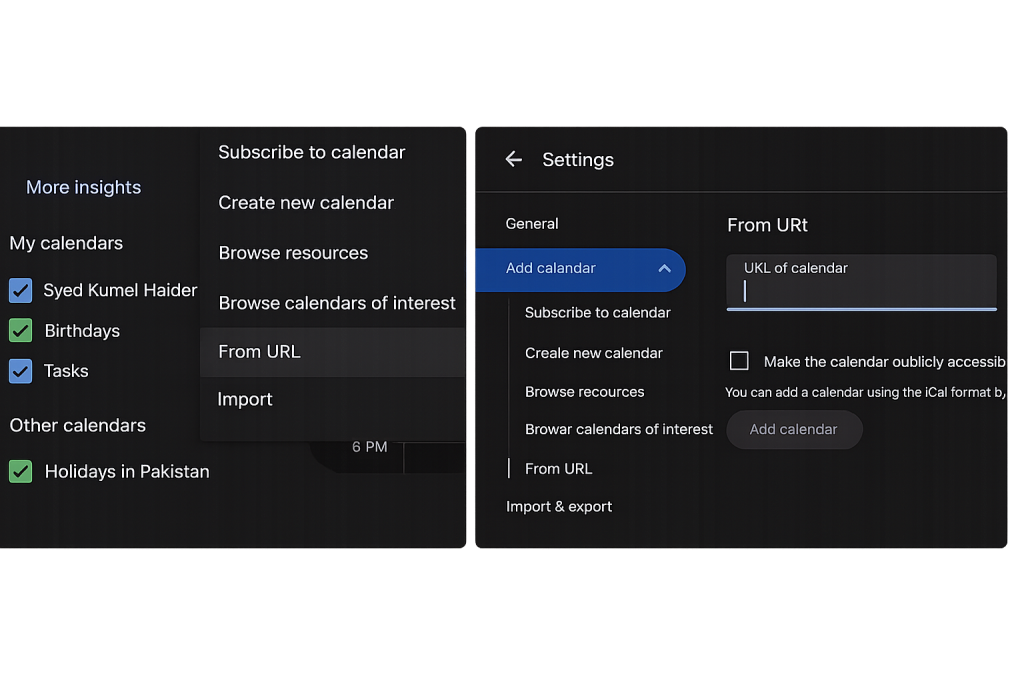
- Open Google Calendar.
- On the left side, find Other calendars.
- Click the + icon.
- Select From URL.
- Paste this calendar link:
- Click Add calendar.
Your subscribed events will now appear in Google Calendar.
Outlook Calendar
Subscribe using Outlook Calendar
- Open Outlook Calendar.
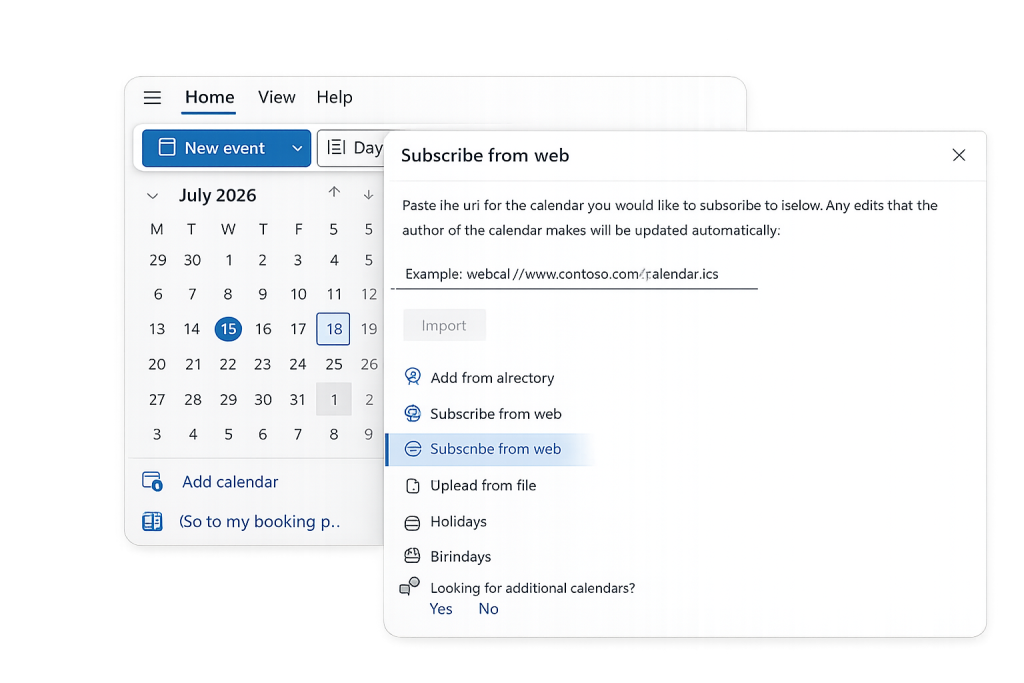
- Click Add calendar.
- Select Subscribe from web.
- Paste this calendar link:
- Enter a calendar name, such as MMTCP Alumni Events.
- Click Import or Subscribe.
Your subscribed events will now appear in Outlook Calendar.
Apple Calendar
Subscribe using Apple CalendarOn Mac
- Open Apple Calendar.
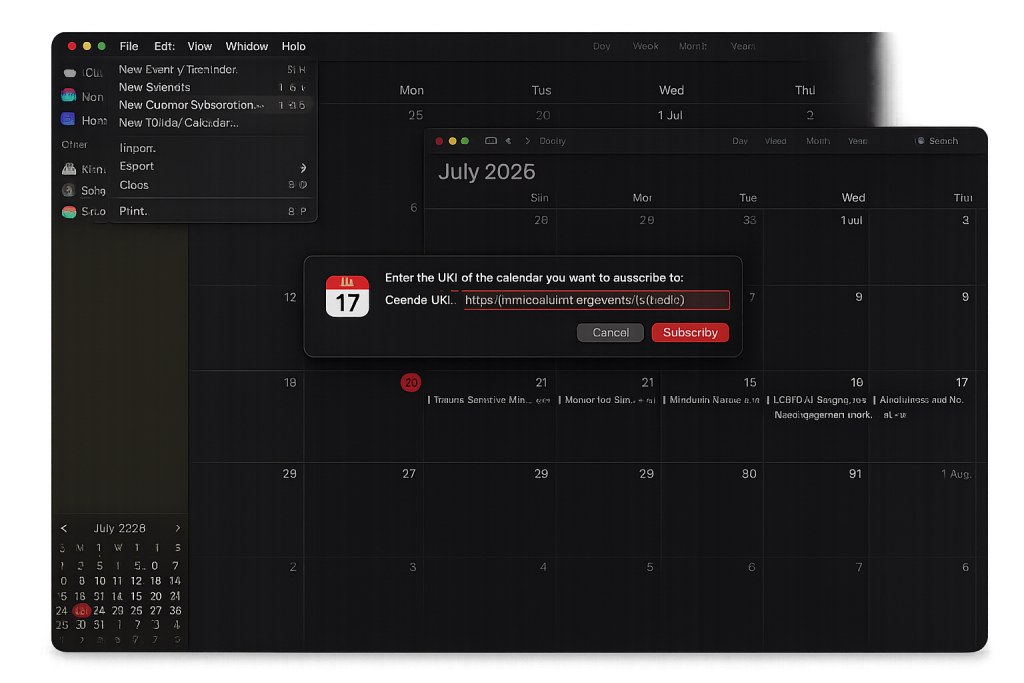
- Go to File → New Calendar Subscription.
- Paste this calendar link:
- Click Subscribe.
- Enter a calendar name, such as MMTCP Alumni Events.
- Choose your preferred refresh setting.
- Click OK.